INF105 gruppetime 03
☛ Handwritten notes can be included in the quizzes
☛ Check that nano, python3, py3-numpy, xxd, curl packages are installed
( unsure? check the path via type nano )
Contents
Everything is a file
Below is the list of common file extensions. You saw some of these earlier: you can’t play .png in Apple Music or open .avi in Paint.
Task. Discuss in groups: which of these can be executed in Linux?
-
.pdf -
.iso -
.sh -
.mpeg -
.exe -
.html -
.py -
.txt
In Unix systems ( which Linux corresponds to as well ) everything is a file: text, image, program, installation image, disc partitions… even folders and devices! “Everything is a file” is the idea of how Linux and other UNIX-like OSes use abstractions to represent devices, info about the system, and other kinds of things. This means the things you see on the filesystem aren’t actual files on the disk, but instead illusions the OS plants on the filesystem so you can access some resources on your system by using the same means you use to read an actual file.
To put it simply, a file is just some quantity of bytes that you have a name for. It is not the file extension that decides how to interact with the file, but the program you are passing the file into:
Task. See for yourself:
- Create a text file (either
.mdor.txt) and write a python print function there with any greeting message. - Run this file with python installed on your VM.
- Try to change the extensions of the file by renaming it.
Permission granted
Every file has permission flags. They determine who can access files and directories on a system and how. Let’s have a look on our text file:
ls -l hello.txt
-rw-r--r--    1 root     root            15 Aug 31 10:19 hello.txt
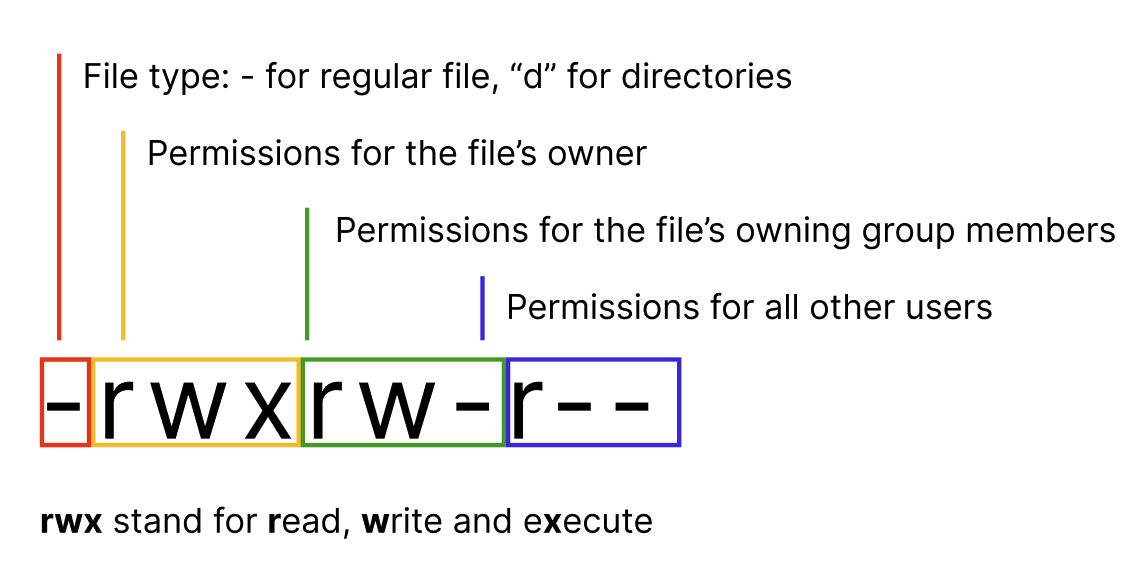
As we skipped user creation step during installation, your current user is ____________ .
(Hint: whoami | xargs id (pass whoami stdout as argument of id command))
Task. The root user (User ID 0) can read, write, or execute any file and run any process regardless of file ownership or group settings. Let’s see how it is different to a new user:
- Create a new user and switch into that user (read manuals on
adduser,login,su). - Write down permission string for new user for each target below:
/bin_____________________________________________________/etc/group_______________________________________________/usr/bin/python3_________________________________________
Discuss in groups what the differences in these user’s permission strings mean?
- Now try to write something within these directories or call a file. What goes wrong? Switch back to root and compare the behaviour.
- You may’ve noticed that some of the lines are painted in cyan and start with the “l” letter. What does it mean and what is this file type being used for?
Interpreters
As we discussed earlier, it is all about how you read the file. In Linux, an interpreter is a program that takes instructions written in some language and makes the computer execute those instructions. Think of it as a cook that will perfectly follow the recipe written only in their language: your job is to pass the recipe on the language it understands.
Task. We already have a couple of interpreters in our machines, and one of them is Bash. Let’s try to execute the file with it:
- Let’s make a copy of our text file with your greeting message translated from pythonese print to bashian echo (don’t forget about syntax differences).
- Try to run this file:
./filename.sh. What is the output? - Allow the owner, group, and all other users to execute that file (read about
chmod):
Validate the new permissions string. What has changed? - Try to run this one more time.
One more interpreter we have is Python. As we saw from before, we can run the file even without changing permission. This is happening because we’ve executed python with the file passed as an argument of the call.
Shebangs
Another way to point a file to a specific interpreter is to use shebang - a special string that starts with #! characters and the path to the interpreter of your choice:
For example: #!/bin/bash - example for bash interpreter in /bin/ directory
Task. Let’s learn to execute python files by just calling them:
- Identify the path of your python interpreter and its permissions.
- Edit your python greeting file by adding a shebang with the correct python interpreter path on top of it.
- Change the mode of the file to allow its execution.
- Run it!
Digging deeper: file extensions. Although we have shown that Linux file extensions serve only humans’ understanding of what this file is for, you still need to pick them carefully because:
- Meaningful file names and extensions will save your life later on when you will already forget the content and the purpose of the file,
- Windows OS relies heavily on file extensions to identify file types and launch the correct programs. You won’t be able to work on the same project together with Widnows users if your files have unconventional extensions.
Executor 3000
What does it really mean to execute the file? Let’s review it on the example of the following C language program:
int diff_of_sqaures(int a, int b) {
    return (a * a ) - (b * b);
}

int foo() {
    return diff_of_sqaures(4,2);
}
Task.
- In your hosting system (not VM), open https://godbolt.org/
- Copy-paste the script above to the left panel, choose C language
- Add two panels on the right that corresponds to popular modern procedure architectures:
- One for Apple Silicon Macs, iPhones and (most of) Androids
Family: ______________________ version: ____________________________ - Another for traditional Intel cores / AMD Ryzen CPUs:
Family: ______________________ version: ____________________________
Hint: version is some number of bits and it will be the same for both cases.
- How these two differently architectured compilers approach this program. What do they do similar? Differently? Explain in groups below.
Hint: you should be able to identify the following concepts:
- RISC/CISC
- fused multiply-subtract
- constant folding
- one-operand and two-operand instructions
Scripts for life
Task.
- Pick any open API you wish from
(for example, you can use the YR’s weather api or random facts about cats). - Using python’s request package or bash’s curl command, adopt the functionality of this API as a simple script. Your script should provide some output based on the APi: show tomorrow’s weather forecast, random cat fact, tv series to watch, emoji to type - you decide what you want!
- Write a correct shebang at the beginning of the file, open execute permission and
run it!